Trending...
- Registered Nurse Launches Healthcare Wealth Strategy Practice for Healthcare Professionals - 170
- Homeowner Prep Announces Strategic Language Shift: Replacing "Renters" with "Future Homeowners" to Inspire Wealth-Building Mindsets
- Governor Jared Polis Hands Out 3 Millionth Book with Colorado Department of Early Childhood Highlighting the Imagination Library of Colorado's Statewide Impact
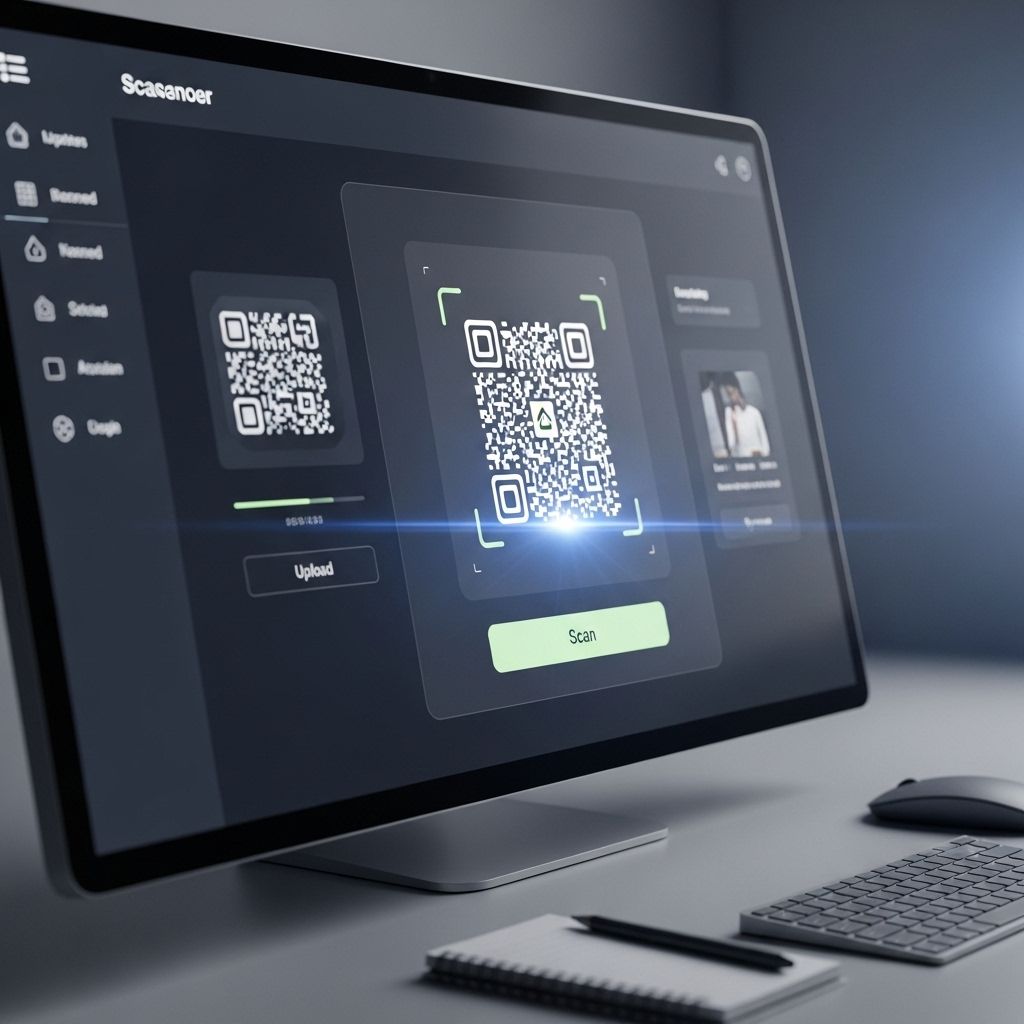
Stuck with a QR code in your gallery? Learn how to use a QR code scanner from image files on Android, iPhone, and PC quickly and safely.
DENVER - ColoradoDesk -- How to Scan a QR Code from an Image: A Step-by-Step Guide
In today's digital world, QR codes are everywhere. We see them on restaurant menus, payment terminals, and marketing flyers. Usually, you scan them with your camera. But what happens when the QR code is sent to you digitally? Perhaps it is a screenshot, an email attachment, or a social media post. You cannot point your camera at your own phone screen. This guide will teach you exactly how to use a QR code scanner from Image files directly on your device. We will cover Android, iOS, and Desktop methods to ensure you can access information quickly and easily.
To solve this problem, you need to use software that uses Optical Character Recognition (OCR) or specific QR recognition algorithms. You do not need a second phone to scan the first phone. Modern operating systems have built-in tools that make this process seamless. Whether you are using the latest iPhone or a Windows PC.
More on Colorado Desk
Desktop Solutions: Windows and Mac
Scanning a QR code on a desktop computer can feel more complicated because we are used to mobile-first solutions. However, there are efficient ways to perform a QR code reader from Image operation on your PC or Mac. You do not need to pull out your phone to scan your computer screen. Here are the best strategies for desktop users.
More on Colorado Desk
A QR code is a matrix of black and white squares. If the contrast is poor, or the image is blurry, the software cannot interpret the data. Here is how to ensure a successful scan every time.
In today's digital world, QR codes are everywhere. We see them on restaurant menus, payment terminals, and marketing flyers. Usually, you scan them with your camera. But what happens when the QR code is sent to you digitally? Perhaps it is a screenshot, an email attachment, or a social media post. You cannot point your camera at your own phone screen. This guide will teach you exactly how to use a QR code scanner from Image files directly on your device. We will cover Android, iOS, and Desktop methods to ensure you can access information quickly and easily.
To solve this problem, you need to use software that uses Optical Character Recognition (OCR) or specific QR recognition algorithms. You do not need a second phone to scan the first phone. Modern operating systems have built-in tools that make this process seamless. Whether you are using the latest iPhone or a Windows PC.
More on Colorado Desk
- Quality Water Treatment Unveils SoftPro Elite HE Water Softener for City Water, Setting a New Standard in Residential Water Treatment
- UK Financial Ltd Chooses PUMP.FUN App to Launch Maya Meme's Minor-League Meme Coins and Announces Lifetime Airdrop Program
- Boston Industrial Solutions Expands Its Industry-Leading UV Ink Portfolio with the Launch of a Matte Ink - Natron® UVPZ
- Century Fasteners Corp. Exhibiting at 2026 MRO Americas Show – April 21-23, 2026 – Booth #2257
- Colorado Announces Proposal to Annex Northern New Mexico, Protecting State From Texas Aggression
Desktop Solutions: Windows and Mac
Scanning a QR code on a desktop computer can feel more complicated because we are used to mobile-first solutions. However, there are efficient ways to perform a QR code reader from Image operation on your PC or Mac. You do not need to pull out your phone to scan your computer screen. Here are the best strategies for desktop users.
- Windows Camera App If you have a webcam, you can hold a printed code or a phone screen up to it. Search for "Camera" in the Start menu. However, for saved images, this is not efficient.
- CodeTwo QR Code Desktop Reader This is a popular free software for Windows. Once installed, it lets you scan QR codes directly from images saved on your hard drive or even snag them from a specific part of your screen using a snipping tool.
- Mac Native Features On macOS, you do not need extra tools if you use the "Preview" app. However, often the fastest way on a Mac is to use an app like "QR Journal" available on the App Store.
- Web-Based Scanners If you do not want to install software, use a trusted online scanner. Websites like "WebQR" allow you to upload an image file (JPG or PNG), and they will display the content instantly.
More on Colorado Desk
- Blue Sparrow Coffee named Best Matcha in Westword's Best of Denver 2026
- Ocean County College Introduces Pathways to Simplify the Student Journey and Strengthen Career Connections
- Kiko Nation Expands to Apple App Store, Achieving Full Mobile Deployment for Livestock Digital Registry Platform
- The Lawyers' Marketer Launches Claude AI Implementation Service for Law Firms
- Certified Trading Card Association and Collectors MD Launch Healthy Hobby Initiative
A QR code is a matrix of black and white squares. If the contrast is poor, or the image is blurry, the software cannot interpret the data. Here is how to ensure a successful scan every time.
- Resolution Ensure the screenshot or image is high resolution. If you zoom in and the squares look pixelated, the scanner will fail. Try to get the original file rather than a compressed thumbnail.
- Lighting and Contrast If you took a photo of a screen, glare can obscure the data points. Ensure the lighting is even. For digital files, ensure the code is black on white or has high contrast.
- File Formats Stick to standard formats like JPG or PNG. Some scanners struggle with GIF or WebP formats. If you have a weird format, take a screenshot of it to convert it to PNG automatically.
Source: 2scan
0 Comments
Latest on Colorado Desk
- Surging Into Hyper-Growth Mode With Record Revenue, Raised 2026 Guidance, and Game-Changing AI Platform; Off The Hook YS (NYSE American: OTH)
- Mom Creators Coalition Launches with WaterWipes® as Official Founding Sponsor
- Senior Legacy Transition Program Introduced by Denver Metro Realtor with RE/MAX Professionals
- PandaGuarantee Launches Rent Guarantor Service in New York City
- The $112M Marketing Lesson Joe Whyte Learned: Why 'More Traffic' Is the Biggest Lie in Digital Marketing
- Colorado: Protecting Public Safety: Governor Polis Signs Social Media Law to Support Law Enforcement and Enhance Safety
- Daniel Kaufman Expands Kaufman & Company Real Estate Platform With New Acquisitions, AI-Driven Industrial Development and Nationwide Growth Initiative
- Artemis Fine Arts and Arte Primitivo's debut collaborative auction was a huge success, totaling nearly $1.5 million
- purelyIV Launches Lab Testing Services in Metro Detroit
- Governor Polis Thanks Executive Director Kim Bimestefer's Service to the State of Colorado and Leadership in Health Care for Coloradans
- Colorado Apprenticeship Month 2026: Spread the Apprenticeship Effect
- On the 296th Anniversary of the Ceremony That Made His Ancestor Emperor, a Cherokee Descendant Publishes the Novel That Restores Him
- Colorado: Governor Polis Celebrates Significant Drop in Auto Theft in 2025
- Bokka Group Updates BuilderCX™ Platform Page, Setting a New Standard for Home Builder Customer Satisfaction Surveys
- NRx Pharmaceuticals Could Be on the Verge of a Breakout Year as AI, FDA Catalysts, and Mental Health Demand Converge
- Canyons & Chefs Launches New Page Dedicated to Private Chef Bachelor and Bachelorette Experiences Across Colorado
- Canyons and Chefs Launches New Page for Cannabis-Infused Private Chef Dining Across Colorado
- DC Accounting Firm Offers Free Business CRM to Small Business Clients Alongside Weekly Bookkeeping Model
- CCHR: Psychiatric Drugs Fuel Rising Death Toll: National Adverse Drug Event Awareness Day Confronts America's Medication Crisis
- Denver Apartment Finders Updates Its RiNo Page to Help Renters Navigate Denver's River North Market